This page explains the Scheduled Tasks screen in Josys.
Overview
This page explains the Scheduled Tasks screen in Josys.
Target Audience
IT Administrators
Screen Overview
The following section describes the Scheduled Tasks screen and the details screen that appears when you click on each task.
Scheduled Tasks Screen
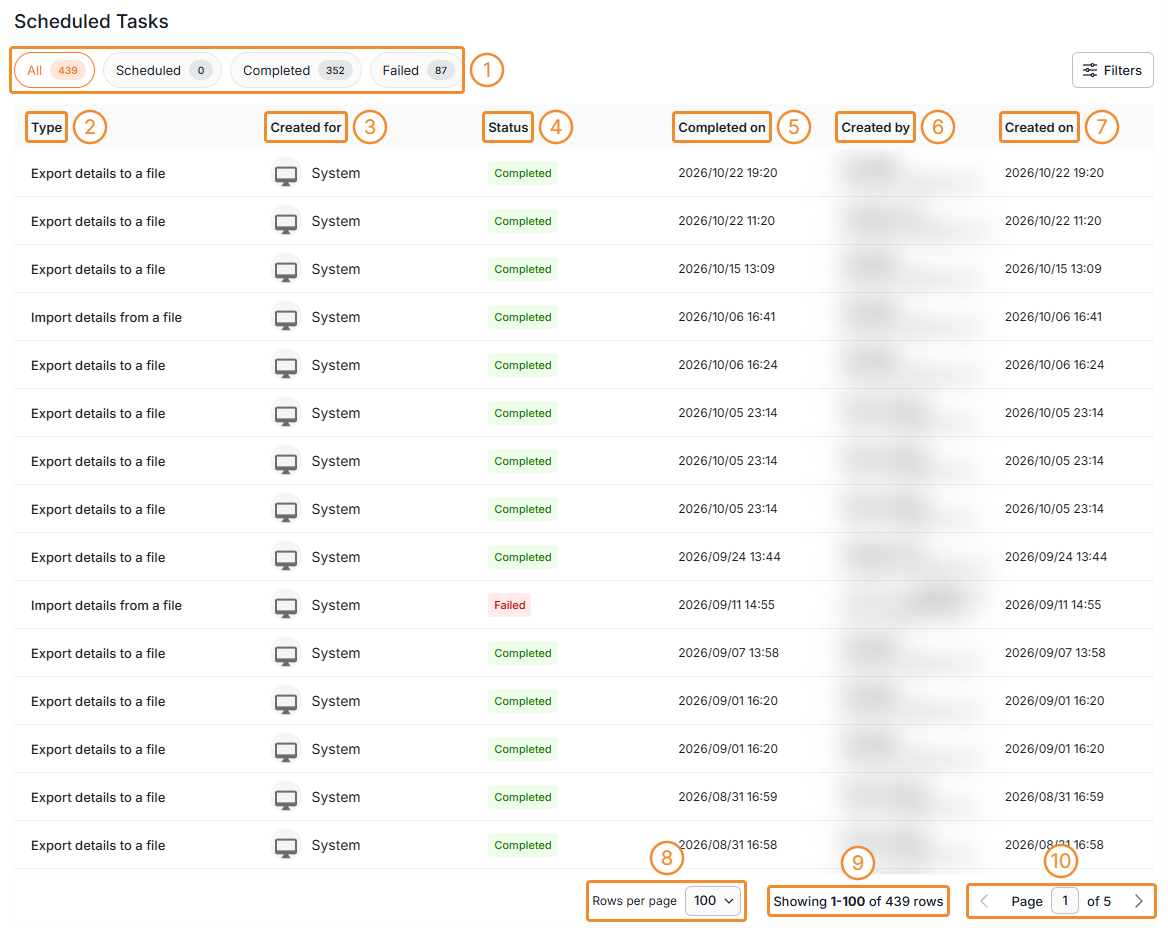
Description of Screen Features
The screen features are described below according to the numbers in the screenshot.
| No. | Item | Description |
|---|---|---|
| ① | Scheduled Tasks Tabs | Divided into the following four tabs: ・All: Displays all scheduled tasks. ・Scheduled: Displays tasks that are scheduled. ・Completed: Displays tasks that have been completed. ・Failed: Displays tasks that have failed. |
| ② | Type | Displays the name of the task. |
| ③ | Created for | Displays the target of the task. For tasks targeting an individual, their name and email address are displayed. For tasks targeting the system, "System" is displayed. |
| ④ | Status | Divided into the following three statuses: ・Completed: The status when all tasks have been completed. ・Completed with Errors: The status when a task is partially completed. ・Failed: The status when the task has failed. For "Completed with Errors" or "Failed" statuses, you can click the "Type" to view the details of the failure. |
| ⑤ | Completed on | Displays the date and time when the scheduled task was completed. |
| ⑥ | Created By | Displays the name and email address of the account that was logged in when the scheduled task was run. |
| ⑦ | Created on | Displays the date and time when the scheduled task was run. For scheduled tasks, the date and time when the task was scheduled is displayed. |
| ⑧ | Rows per page | Can be set to 10, 25, 50, or 100 rows. |
| ⑨ | Number of Scheduled Tasks | Displays the number of scheduled tasks shown on the current page out of the total number of tasks. |
| ⑩ | Page | Displays the current page number out of the total number of pages. |